Python API + Mirada with FFmpeg
A new Cerebro Serpens (Constellation of the Snake ) version has been released in order to change the old Cerebro Astro version that you were working with since 2010. The reason we call it Serpens: Serpens version if to compare with Astro version, will be a Software development Kit on the Python API base.
Software Development Kit
SDK allows to develop custom functions for the system that were not available in the standard version, also to automate interaction between Cerebro and another Software, that is used (we will not be afraid this word) in the pipeline in your studio.
SDK consists of two global parts: Client API and Server API.
With the Help of «Client» API you can add points to the main menu, to the context menu – in the navigator and also to the forum. It is necessary to notice that API is realized on a so-called « trigger approach», or «system of events». That means with the help of client API you can launch various scripts in a response to the user actions or the system events, and thus make routine operations even more automatic, for example: to provide data transmission between several systems, or to conduct new control functions – to supervise correctness of the name of spread files, file types, etc.
Server API- Is used as a database access. In an automatic mode it allows to create/edit records to the database, for example: tasks and messages, and also it allow spreading files and links.
More detailed documentation about SDK is still in progress, but some sections are already available to inquisitive “Python-coders”. Follow our updates on our website in the “Support” section. New articles about SDK are updated almost daily, and we hope that the final documentation will be finished approximately by the May 15.
New Replication Server
In order to increase our system’s general reliability, we have launched an additional Cerebro’s replication server. That means, if the main server will not respond, users will be automatically switched onto the reserve server, and they will be able to continue their work at no problem. Replication server provides data synchronization in the real time, therefore switching between the servers will not be noticeable for users.
Note: Such data synchronization is available only on SaaS-plans. Local system clients still must manage their backup data on their own.
Generally, if you want a real reliability for free- welcome to the «cloud»!
New iOS Client version.
It happened! The beta-version of a long-awaited «Cerebro for iPad/iPhone 2.0» has finally being finished and soon it will be released. Currently, the app is being sent to the App Store. We hope that in 2-3 weeks it will be available to all the happy Apple (iPad and iPhone) owners.
A new iOS-client, compare to the old one, provides full compatibility with the new Cerebro Serpens databases.
Besides, in the new version the interface has been updated so that it improves the user experience when tracking your projects on an iPad.
New Mirada
Besides SDK, new version of Cerebro also includes an updated version of a Mirada player. Besides a standard Quick Time API, FFmpeg libraries, that considerably expands the list of supported codecs and containers. Thus the user can choose what library to use for playing one of these formats.
In general, from now on your favorite h.264 will run more smoothly and more precisely. Of course MiradaPro supports FFmpeg.

And that’s not all!
Aside the described innovations above, we brought some more extra options, which in the essence are described in one word «Convenience! ».
First, it is a new license activation principle in locally established systems. If in the previous versions our system administrator had to «to climb under a cowl» and to replace a certain special file in a certain special place, now it can be imported simply directly from the Cerebro interface. New interface displays much more information now when you manage your licenses, than it was available earlier – for example, the maximum number of users, validity periods of each license, etc.
Second, new Cargador. It is able to switch automatically from a local cache of files to the network storage and back – depending on, whether the network storage at the moment of login is available. Imagine that you have a laptop that periodically moves with you from your house to your office and back. While “Old” Cargador at first would download to your laptop those files which are in the network storage, but are absent in your local cache. While «new» Cargador instead of wasting time on downloading- it will simply automatically connect you directly to the file server, straight away you will be able to work with them, while saving time and space on your hard disc. However, if you are more comfortable with the “Old Cargador” and you don’t want to change anything, then it is possible to switch this function off.
And third, we have improved our search system. Now as criteria for search it is possible to set not only available parameters, but also the absent ones. For example, it is possible to look for tasks not only with the put-down tag, but also tasks where tag is not set.
The new Cerebro Serpent is already available for those users that use Saas-Demo version and SaaS-Private Studio. But users that use local versions (Business and Corporate) will have their shipment after «May holidays», starting from May 15; a process of getting demands form system administrators.
More information about release here
Sincerely and have a pleasant «May holidays»!
Cerebro New Features
Access Rights Management Upgraded
Access rights can be global (granted to the whole Universe) or local, task-specific.
To adjust task-specific access rights pick the task (or project), go to
Task Properties tab and press the button .
![]()
A new window will open:

The upper list displays current groups and users who have access to the task. There you can change Role and Access Rights Inheritance Pattern. A Role is a combination of separate access rights which allows a user certain type of activities in the project structure. Access Rights Inheritance Pattern defines the scope of Role application. The patterns can be the following:
1. To the current task and all lower levels (sublevels)
2. To the current level only
3. To the sublevels only
The access rights highlighted with bold type are not inherited from upper levels (parent objects) and therefore can be changed. Inherited access rights cannot be altered. If you need to alter inherited access rights you must uncheck Inherit Access Rights from Parent Objects checkbox first. All current inherited rights will be changed to direct and ten set to zero. After that you can edit/delete these access rights in the particular task.
You can customize access rights for a picked group/user in the upper list by checking / unchecking the appropriate checkboxes in the lower list.
To add a group / user to the upper list press Add a Group/User button.
A dialog window will appear where you’ll be able to select Groups/Users to add to the list.

Pressing Role button calls a window with list of roles and their specific access rights settings.
Here you can see and edit current role settings and create new roles.
Global access rights are set up in Administrator window (Main menu/Tools/Administrator) on Universe tab

Global access rights are being set up the same way as described above except one restriction: they can be set up for groups only (not for separate users).
Access rights management is one of the most sophisticated matters in Cerebro therefore we strongly recommend you to read the latest User Manual on this matter before making any changes. ССЫЛКА
The latest access rights management system is not guaranteed to be compatible with the previous one. An issue noticed: if you edit access rights in the latest version of Cerebro, they can be displayed incorrectly in previous versions.
Bugs Fixed
Large files export to Cargador error (all platforms) – fixed
More information here.
New CEREBRO: Some options and bugs fix

You may select the UI language Cerebro directly at login screen.
You may choose avatar display option to show them (the menu Cerebro Astro – Settings – Display Settings):
- - on the left, center or right of the message header
- - or disable altogether.
There is a new export Review option appear in MiradaPro (menu Review / Export Track to MOV). You may save Review track with voice comments in separate QuicktTme MOV file. The feature available on Windows and MacOS platforms. (Windows: Unknown problem was detected when export file targeted to Desktop)
Corrections to the server component:
module Sirena was updated. File deletion error was fixed.
Bug Fix in Cerebro:
The First Steps Wizard assigns default file storage for a new project immediately. This will eliminate “Site list is empty” error message.
Bug Fix in Mirada:
Saving of long (more than 3 minutes) reviews was fixed. They are correctly stored and shipped in Cerebro now.
More information here.
Mirada Pro: Stereoscopic 3D Support + 3 New Features
CineSoft Ltd. launches a new version of the most popular Cerebro plugin – Mirada player.
A new version of Mirada, named Mirada Pro offers four advanced features:
- Stereoscopic 3D support,
- Online reviewing sessions,
- Color grading,
- Reviews saved as standalone files in a user defined folder.
1. Stereoscopic 3D Support
Cerebro professional users get a unique tool for watching images and videos in stereoscopic 3D format and what is more noticeable – this tool allows to draw stereoscopic comments as well, i.e., they are parallax adjustable!
Mirada Pro supports 5 stereoscopic modes:
- OpenGL Quad Buffering Mode based on NVIDIA 3DVision Pro hardware technology.
This mode requires an NVIDIA Quadro series graphic controller as well as shutter eyeglasses and an emitter (NVIDIA 3DVision Kit).
- Anaglyph Mode. You’ll need special eyeglasses with red and cyan color filters.

Alongside with the described above modes Mirada Pro offers a special mode for preview theaters (review rooms) - Dual Screen Output. This mode allows to project two separate videostreams via paired projectors and filter the streams by polarized eyeglasses. A dual video output graphic controller is required to run this mode.
If a user’s graphic controller doesn’t support any of the above modes Mirada Pro offers two monoscopic modes – Source and One Side Only. The first one displays the picture “as is”, the second one displays a half of it, either “left eye” or “right eye” depending on user’s choice.
2. Online Reviewing Sessions
Mirada Pro offers a special tool named Online Reviewing Session. This tool allows several remoted users to establish an Internet connection, share the session link and watch simultaneously not only the content played back by Mirada Pro but each other’s actions as well (mouse cursor movements, timeline shifts, picture zoom and pan).
This mode is based on more progressive technologies than trendy screen sharing, and they makes it possible to share and review high quality images or videofiles on pretty slow Internet connections.
3. Color grading
Tools -> Color Grading menu adjusts Gamma and Exposure and switches on/off Linear to Logarithmic mode:

OpenGL library makes it possible for Mirada Pro to use Color Grading even with RAW formats (or other formats with more than 8 bits per color channel).
4. Reviews Saved as Standalone Files
This option lets a user save a review as a separate file to a defined folder if for some reason he (she) doesn’t want to publish it immediately in a Cerebro forum thread.
More information
- Mirada Versions Comparison Mirada и Mirada Pro
- Full documentation about Mirada Pro
How Do I Get Mirada Pro?
Starting with build 5794 by June 17, 2011 Mirada Pro is included in standard Cerebro installation packages for Windows, MacOS and Linux. Pro functions unlock after a special product key activation. Mirada Pro is available for all Cerebro pricing plans, including Free Demo.
A product key can be purchased by either of two possible ways:
1) Via Cerebro Web Interface (Main Menu -> Account -> Buy Mirada Pro);
2) Contacting CineSoft directly.
Product keys can be issued for 1, 3, 6, 12 months of validity or for an unlimited time.
Please note that Mirada Pro product keys are “node-locked”, i.e., bound to a particular workstation – this policy is opposite to Cerebro traditional “floating licenses”. We must take into account that unlike Cerebro, Mirada Pro is a highly specialized toolkit required by a comparatively small part of a whole facility. So, this licensing approach seems to be more economically effective in terms of company’s software assets and investments. Besides, Pro functions have rather specific hardware requirements and therefore it doesn’t make much sense in installing Mirada Pro on every PC in the house.
New Cerebro version
User Avatars
User avatars can be added to a user profile here:
Main menu -> Cerebro Astro -> Profile…
Universe administrators can attach avatars to material resources on Resources tab in Administrator window.
Main menu -> Tools -> Administrator…
Now every message in a forum can be identified by its creator’s avatar.
You may change Avatar size in Main menu -> Cerebro Astro -> Preferences.

Getting Started Wizard
This wizard helps create and set up a new project structure.
The wizard consists of several steps to create Users, Groups, Projects and set up permissions & access rights
It’s not obligatory to make all those steps, the wizard can either be closed at any moment or skip several steps and switch to, for example, creation of a new project.
The wizard shows automatically at the 1st time Cerebro starts up. After having been closed it can be launched again manually either in the Main menu -> Tools -> Wizards
Cerebro updated Forum
Message type can be selected/changed in the Add or Edit dialog windows.
Files can be dragged-and-dropped right onto a forum thread.
And it calls an Add message dialog window with the dropped files attached to it.
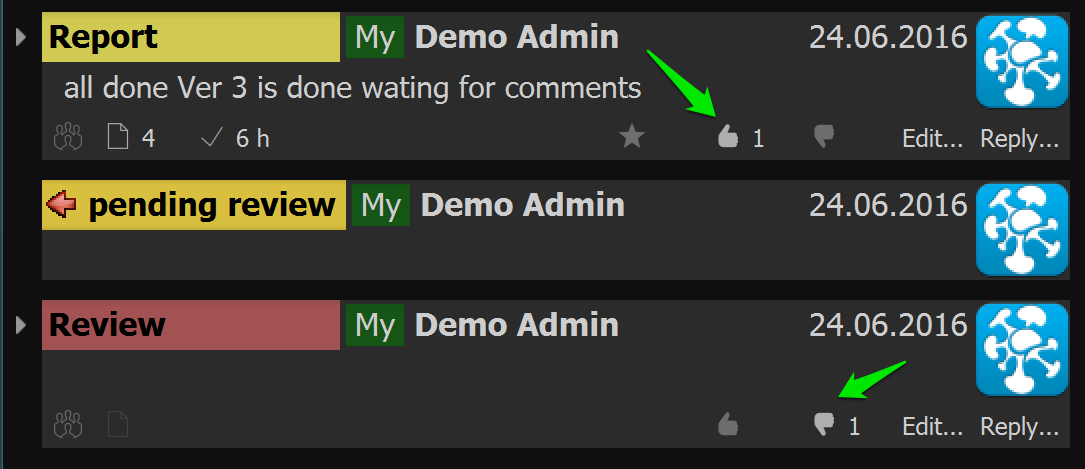
Every forum message now has 2 new buttons, Edit and Reply.
Locked docks
All docks (Navigator, Forum, Gannt chart, etc.) are now locked by default, i.e. they can’t be detached and moved.
To unlock the docks you must uncheck the box View -> State docks-> Fixed docks.
Bugs Fixed
Incorrect connection via a proxy server.
A zero hash file upload error.
Crash caused by date/time adjustment in the New Task dialog window.
Crash caused by Navigator’s Panels style.
Invisible parent tasks for the Restricted Worker role.
More information here
Update: Budget and Multi edit

Budgeting
- Costs planning and tracking function
- Payments record
- Costs statistics
- A new role – Producer – is added. It should be assigned to a project manager responsible for financial performance of a project. Producer has access to budgets and salaries.
Task properties multi-edit
You can change task properties for several tasks simultaneously – just select the desired tasks in Navigator. Any task property can be changed this way except tags.
Unread Messages Button
A new button appeared on the navigation bar.
If you have unread messages, the bulb is on. A click on the button will get you to the first unread message.
Bugs fixed
- Calendar editing fixed
- Task transfer on the next day (in Calendar) fixed
In the next version:
- Resource usage reporting and statistic functions
- Tabs bar for tasks
More information here
Cerebro new version. Work shedule and Calendar.

You will not be able set task planned date and edit Gantt diagram in previous versions of Cerebro client. You should upgrade client in order to do it.
Cerebro
Task planed time is directly determine its duration in days.
You may define work schedules from Tools -> Work Schedules.
Work schedule affect only assigned users.
Note that all schedule and user assignment start work only from particular date and till another schedule will be accepted.
Repeat another time important points to work with task planning:
– You should create work schedule;
– You should assign users on the work schedule;
– You should pay attention to schedule/assignment start dates.
Calendar delivers another approach to plan work
Calendar works in conjunction with assignment tasks panel.
You may select time interval to view in calendar. They can be day, week or two weeks.
“Task properties” changes
The way of task date/time specification has been changed.
Mirada
Mirada shows on-screen painting in on-line sessions .
Coming
– Change properties for multiple task
– Work schedule exceptions: regular holidays, user vocation/ill/extra work days.
Update – Mac OS X 64 Bit, ICal
64 bit Version for Mac OS X 
- This version will work under Mac OS X Leopard 10.5.x, and under Mac OS X Snow Leopard 10.6.x
- Stable work under Mac Os Snow Leopard 10.6.x
- Productivity increase by 2 times for interface “re-drawing” (when shifting from Carbon to Cocoa)
- To change from the 32 bit version to the 64 bit version you will need to download it from our website and install it!
http://http://cerebrohq.com/en/download/ (choose Mac OS X 64 menu item)
If you don’t do this, the automatic updating system will continue to download the 32 bit version.
- Note: the Mirada module for the 64 bit Cerebro distribution kit is still 32 bit (because of QuickTime Api restrictions)
Export into network calendar ICal
- You can view the following drop-down menu in Assigned tasks
- When choosing a menu item a http link for your assigned tasks calendar will be copied into your clipboard
- You will be able to download your calendar from Cerebro (it will be automatically updated) into Google calendar, ICal, Outlook! For e.g. in the Google calendar, please choose Add/ Add URL menu item and insert the copied link.
We’ve started work on implementation of non material resource planning
- This can be “cutting rooms”, cameras, etc.
- CreatingTools/Administatorhttp://cerebrohq.com. Resources
- Assigning resources in Task Properties
Mас OS X – Gantt chart also available!
Creating new tasks by drag and dropping files into navigator function restored.
In the Navigator menu, choose a spot in the project and drag and drop 10 files there, and you will be able to create a task with 10 files or 10 tasks with one of the files , the task name will be created out of the names of each of the files.
In the next version:
- The Gantt chart will take into account Saturdays and Sundays and work hours. You will be able to enable/disable these functions. ![]()
- An additional calendar mode for resource planning!
- Time/resource overlap identification
Integrating Cerebro and Mikogo Web Conference
Cinesoft and BeamYourScreen are proud to announce the integration of the Cerebro project management complex with Mikogo – the easy-to-use and cross-platform remote desktop tool ideal for web conferencing and remote support.
The Mikogo software has been implemented within both the Cerebro Mac OS X and Windows distribution kits. We have created a new “Web conference” menu within the Cerebro interface that allows users to launch Mikogo quickly and easily. All you need to do is register your Mikogo account and click on “Start Mikogo web conference”. Registration is necessary only when you wish start a screen sharing session. Participants, on the other hand, are not required to register a Mikogo account and can rather sit back, relax, and enjoy the easy-to-use Cerebro Mikogo web conference. Player for saved sessions available under Windows OS.
More information on our forum.
Finally! Cerebro features Gantt chart!
Finally, on request of and dreading the threats of our users
Cerebro now includes Gantt Chart!
To edit Gantt chart please go to <Editable> mode.
Plus:
- Task Properties – new links section (task dependence) and expanded date section;
- New Light interface style (looks a little like MS Оutlook) works for all operational systems;
– Warning message when creating new user or exceeding maximum amount of accounts;
– New Event flag (event/meeting) – when creating/reviewing task
In the nearest future calendars synchronized with Cerebro will be available (my tasks/ my meetings) for Outlook/Google Calandar/ICal.
For more details please see our forum.
Please welcome the Cerebro Web version!
The Cerebro web version has finally been launched! You no longer need to install Cerebro locally. If you have Internet access, your login and password – welcome aboard! Access your Cerebro account from any computer.
We remind you that in the web version you will be able to:
- view task tree;
- view assigned and interest task lists;
- view messages and comments;
- create tasks and assign users for tasks;
- download files;
- create tasks, reports and comments to them;
- view attached images.
The Web version interface is available in russian and in english (see screenshots)
To switch language please use the “Language” menu.
Now the most important part:
You can access the web version in the top right hand corner of our website by pressing “SIGN IN” and then “web client”. Or you can use the direct link – http://webclient.cerebrohq.com/
To integrate the new web version with your file storage facilities clients of Studio / Installed rates need to:
- upgrade your studio Cargador service by downloading updated version of Standalone Cargador & Sirena.
- the service works on the 4080 TCP port by default, you must configure the NAT to transfer it to an external address.
Cerebro Web version requirements:
- Internet browsers: Internet Explorer 8 and later versions, Mozilla Firefox 3 and later versions, Opera 10 and later versions, Safari 3 and later versions, Google Chrome 4 and later versions *
- enabled Cookies и JavaScript
- Internet access
(Web version limits– administrator panel inaccessible, not possible to create and view file comments, no audiovisual reviewing options)
*Proper work of the application in other browser versions and in other browsers can not be guaranteed.
We will be very glad to receive feedback from you on the new Web version!
Cinesoft to launch iPhone
Available from the App StoreCerebro iPhone version 1.0. was developed specially for users that are constantly on the move but still need to keep in touch. We’re sending out the application to Apple for approval, so keep your fingers crossed!

Main functions:
- work offline!
- view task tree;
- view assigned and interest task lists;
- view messages and comments;
- create tasks and assign users to tasks;
- download and upload files;
- create tasks, reports and comments to them;
- view attached images.
Cerebro iPhone 1.0. version requirements:
- iPhone firmware 3.0. and later versions;
- supports iPhone (2G,3G, 3GS), iPod Touch (2,3 generations);
- Internet connection.
(iPhone version 1.0. limits– administrator panel inaccessible, not possible to create and view visual file comments)
Installation:
To install the application on your iPhone or iPod Touch you will need to register in the iTunes Store.
If you have an iTunes account, you will be able to install the Cerebro iPhone ver.1.0. application through your computer. You will need to register in iTunes via Internet.
You can download the installation package here: http://www.apple.com/itunes/download/
Please note that the application works on devices with 3.0 firmware and later versions. You can upgrade firmware through your computer using iTunes.
You need Cerebro login and password.
Important!
The Cerebro iPhone ver.1.0 is a FREE application. After installation you will not be charged any money from your iTunes account.
Planning to launch Cerebro Web version!
The web version of Cerebro was developed specially for users that like a change of scene
, or, in other words, do not work on one computer. It can also come in handy for your clients that don’t have the opportunity to install the Cerebro Desktop Client version. We plan on launching Cerebro Web in April 2010.
Soon you will no longer need to install Cerebro locally. If you have Internet access, your login and password – welcome aboard! Access your Cerebro account from any computer.

Main functions:
- view task tree;
- view assigned and interest task lists;
- view messages and comments;
- create tasks and assign users for tasks;
- download and upload files;
- create tasks, reports and comments to them;
- view attached images.
Cerebro Web version requirements:
- Internet browsers: Internet Explorer 8 and later versions, Mozilla Firefox 3 and later versions, Opera 10 and later versions, Safari 3 and later versions, Google Chrome 4 and later versions *
- enabled Cookies и JavaScript
- Internet access
(Web version limits– administrator panel inaccessible, not possible to create and view file comments, no audiovisual reviewing options)
*Proper work of the application in other browser versions and in other browsers can not be guaranteed.
Update – Excel export, Task reordering
- task shifting and copying to various levels and projects 
Select task in the Navigator menu using the shortcuts listed below or by right mouse click:
ctrl-c – to copy (when copying a task all the subtasks will be copied, Definitions will be copied from messages)
сtrl-x – for shifting
ctrl-v – to paste
- Fully re-written “Tools/Project Statistics”… Now works in asynchronous mode (which means fast
), works independently from main window and allows to export any amount of columns into excel, including tags!
- Improved task duplication (Duplicate… right mouse click on Navigator), when duplicating you can copy all messages or only Definitions
- Restored export to Exсel from Search + Interest + Assigned + Navigator – right mouse click Export to Exсel. Export of currently visible columns including any amount of tags (in all modes) option realized!
- In “Cerebro/Preference…Additionally” settings – activate or deactivate heading during Excel export.
New version – Support Release
Full list of changes (fixed many small bug’s)
You can find updated crash courses here http://cinesoft.ru/cerebro/cerebro_crash_course_eng.pdf
Resized the Tools -> Administrator window, it will now fit on a 1024×786 screen
New settings after a file has been downloaded by double-click
Cerebro->Preference menu:
- open file in Mirada
- open dialogue window from which you can shift to or open a task
- do nothing (as in the previous versions)
Email digest and notification
Now we start sending digest and instant notification by email! You can configure email Digest in menu Cerebro/Change profile … (Click for enlarge)
New mirada playlist and password reminder
More details (Russian)Invite from other Universe
New opportunity – invite peoples in your Universe. Work like Skype add to contacts list
(Click for enlarge) 
Cerebro under Mac OS X
We did it !!!
Detailed Announcement in forum (Russian) (Click for enlarge)